How to add WebMCP to your website: a step-by-step tutorial with code
A step-by-step WebMCP tutorial with code: write a tool, register it with registerTool, return errors an agent can read, test it in Chrome and serve it over MCP.
By Rabin Nuchtabek · Updated 2026-11-16 · 6 min read · For Builders
Part of What is a forward deployed engineer? The ultimate guide to becoming one in 2027
To add WebMCP to a website you write each tool as a plain function, register it with document.modelContext.registerTool, return errors as text, and test it in Chrome with a flag switched on. This tutorial does that in eight steps, with code.
It is the hands-on companion to what WebMCP is and why it matters. It follows what this site did in November 2026, including the mistakes its first version made. By the end you will have one working tool an AI agent in Chrome can find and call, and the same tool ready for agents that never open a browser.
What do you need before you start?
You need a site you can add JavaScript to, and Chrome 149 or later. Nothing else is installed: no library, no account, no server.
WebMCP is a draft, and its API has changed once already. The code here matches the draft as it stood on 13 November 2026.
Step 1: Choose what agents can ask
Start with questions. The API comes later. Write down the three questions people most often bring to your site. For a shop: is this in stock, what does delivery cost, where is my order. For this site: what does this AI term mean, what happened in AI today, which guide should I read.
Each question becomes one tool. Give each tool one job, and avoid two tools that do nearly the same thing, because the agent chooses by reading the descriptions.
Start read-only. A tool that looks something up cannot hurt anyone.
Step 2: Write the tool as a function
Write a plain function that takes input and returns text, and keep it away from the page for now. It is easy to test and you can reuse it later.
// tools.js
const LIMIT = 1500

export async function searchGlossary({ query }) {
  if (typeof query !== 'string' || !query.trim()) {
    throw new Error('"query" is required: the term to look up.')
  }
  const terms = await fetch('/data/glossary.json').then(r => r.json())
  const hits = terms.filter(t => t.name.toLowerCase().includes(query.toLowerCase()))
  if (!hits.length) return `No term matches "${query}". All terms: https://example.com/glossary`
  const first = hits[0]
  return `${first.name}\n${first.definition}\nhttps://example.com/glossary/${first.id}`.slice(0, LIMIT)
}
Three habits are already in there:
- Check the input again in code. The schema you publish is a hint. Anything can arrive.
- Say what was wrong in a sentence the agent can act on.
- End with a link to the page the answer came from.
Step 3: Register it with registerTool
Call document.modelContext.registerTool once per tool, with a name, a description, an input schema and the function. Check first that the API exists, because most browsers do not have it.
// register.js
import { searchGlossary } from './tools.js'

if ('modelContext' in document) {
  const controller = new AbortController()
  document.modelContext.registerTool({
    name: 'search_glossary',
    title: 'Look up a term',
    description: 'Look up a term in the glossary. Returns the definition and the address of its page.',
    inputSchema: {
      type: 'object',
      properties: { query: { type: 'string', description: 'The term, for example "RAG".' } },
      required: ['query'],
    },
    annotations: { readOnlyHint: true },
    async execute(input) {
      try {
        return await searchGlossary(input)
      } catch (error) {
        return `Could not answer: ${error.message}`
      }
    },
  }, { signal: controller.signal })
  // To take the tool back later: controller.abort()
}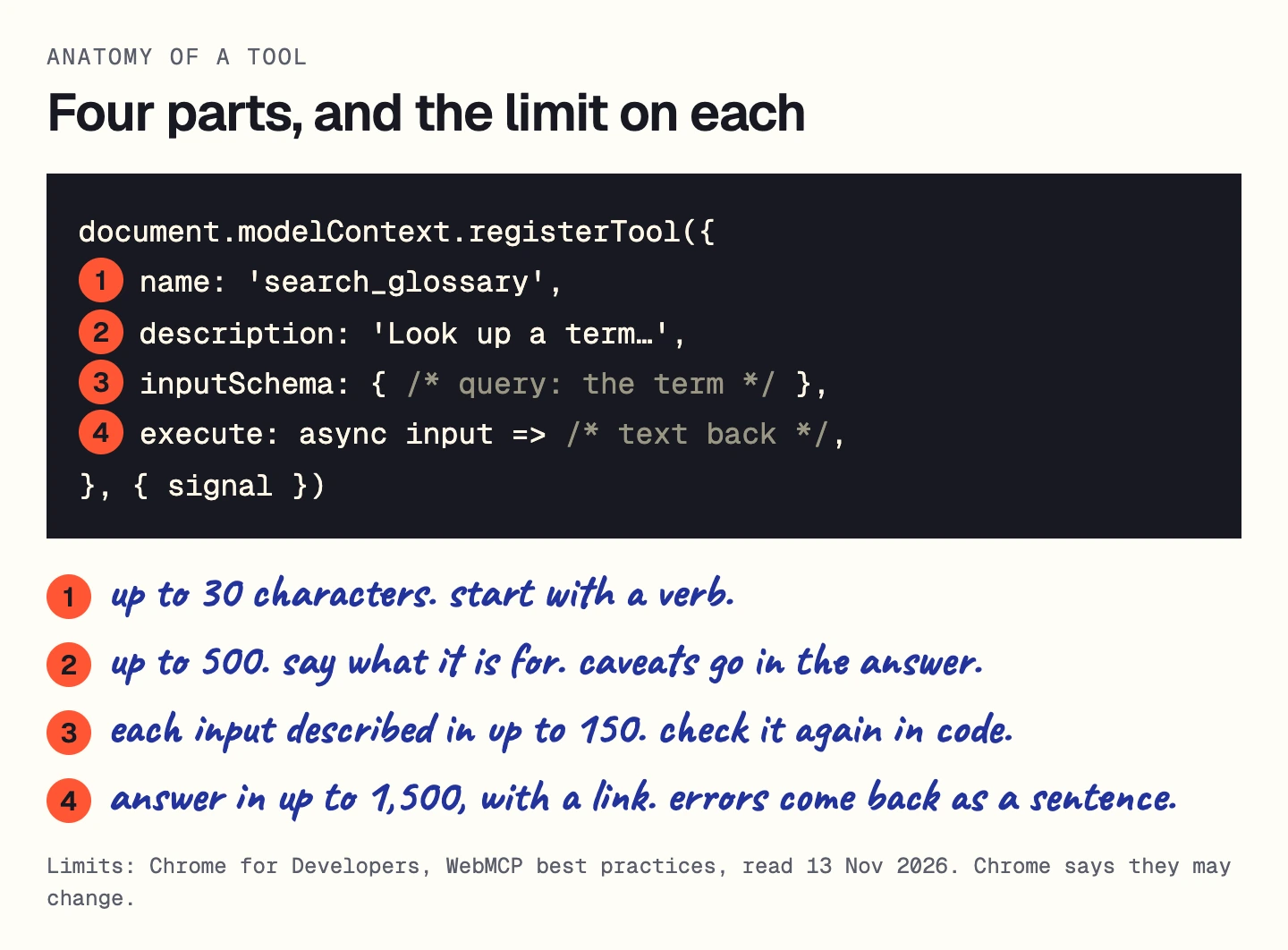
What matters here:
- The page must work exactly as before in browsers without the API.
readOnlyHinttells the agent the tool changes nothing.- Catch errors and return them as text. When a tool throws, the browser tells the agent only that it failed, and the agent has nothing to correct. The draft does this on purpose, to keep a site's internals private.
- The signal is how you take a tool back. There is no unregister call.
Step 4: Keep to Chrome's limits
Chrome's guidance gives a tool's answer about 1,500 characters, its description 500, each input's description 150, and a name 30. Chrome says these numbers may change.
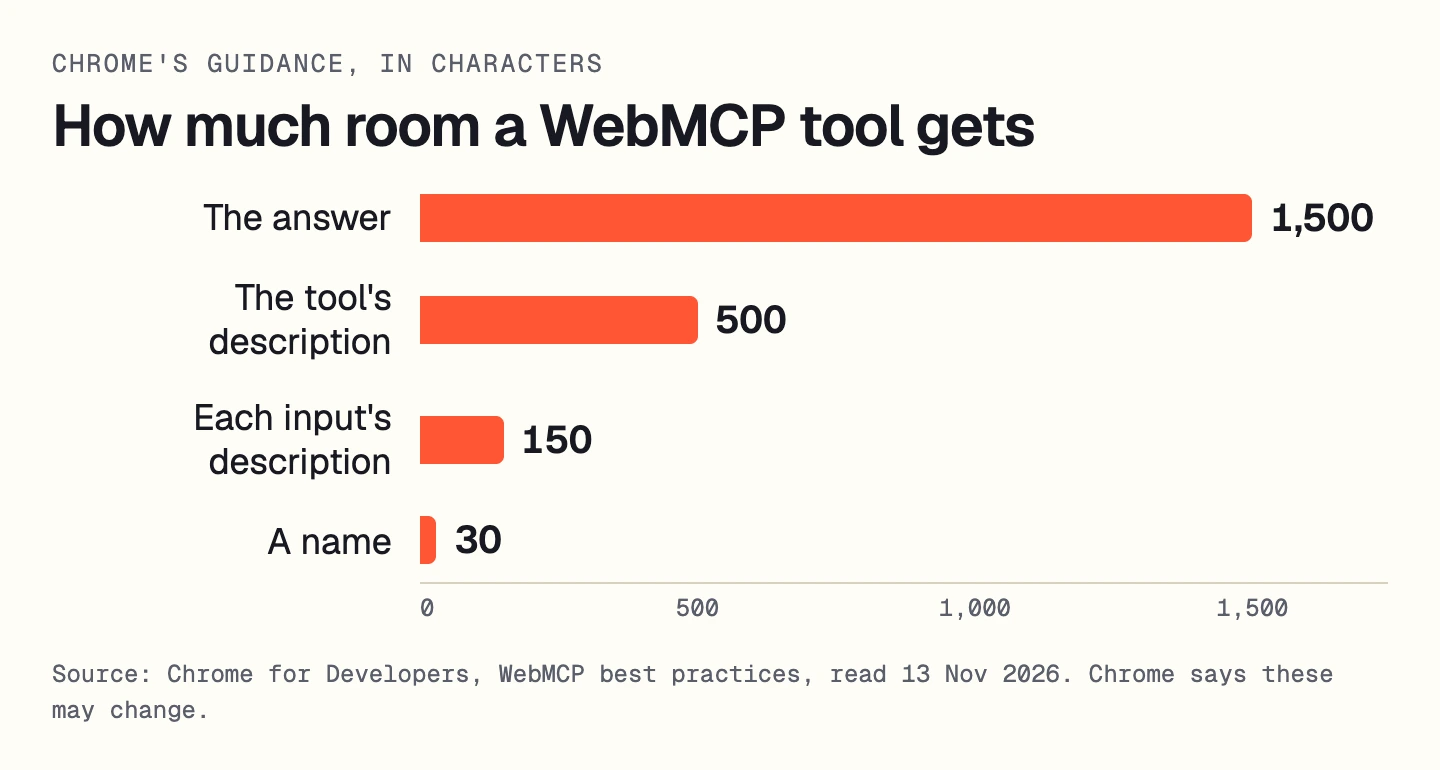
The same page has naming advice: use a verb, and make it plain whether the tool does the thing or only starts it. In Chrome's own example, create-event creates an event, while start-event-creation-process sends the person to a form.
Write these limits into your tests. They are easy to break by accident.
Step 5: Test your tools in Chrome
Switch on Chrome's testing flag, open your page, and call the tool from the DevTools console.
- Open
chrome://flags/#enable-webmcp-testing, switch it on and restart Chrome. - Open your page, then the DevTools console.
- List the tools and call one, as below.
const tools = await document.modelContext.getTools()
tools.map(tool => tool.name)
await document.modelContext.executeTool(tools[0], { query: 'RAG' })
Try bad input as well, and read the answer the way an agent would. If it does not tell you what to fix, rewrite it.
Chrome's documentation also describes evals: test files that check whether a model picks the right tool for a request. Add them once you have more than a handful of tools.
Step 6: Add one action, carefully
An action tool may change what the visitor is looking at, and anything with a consequence must stop at a step the visitor confirms. Lookups are safe. Actions need that rule.
This site has two actions. One shows a page of the site in the tab. The other opens the message window with a draft in it. The visitor reads the draft and presses Send. The tool has no way to send.
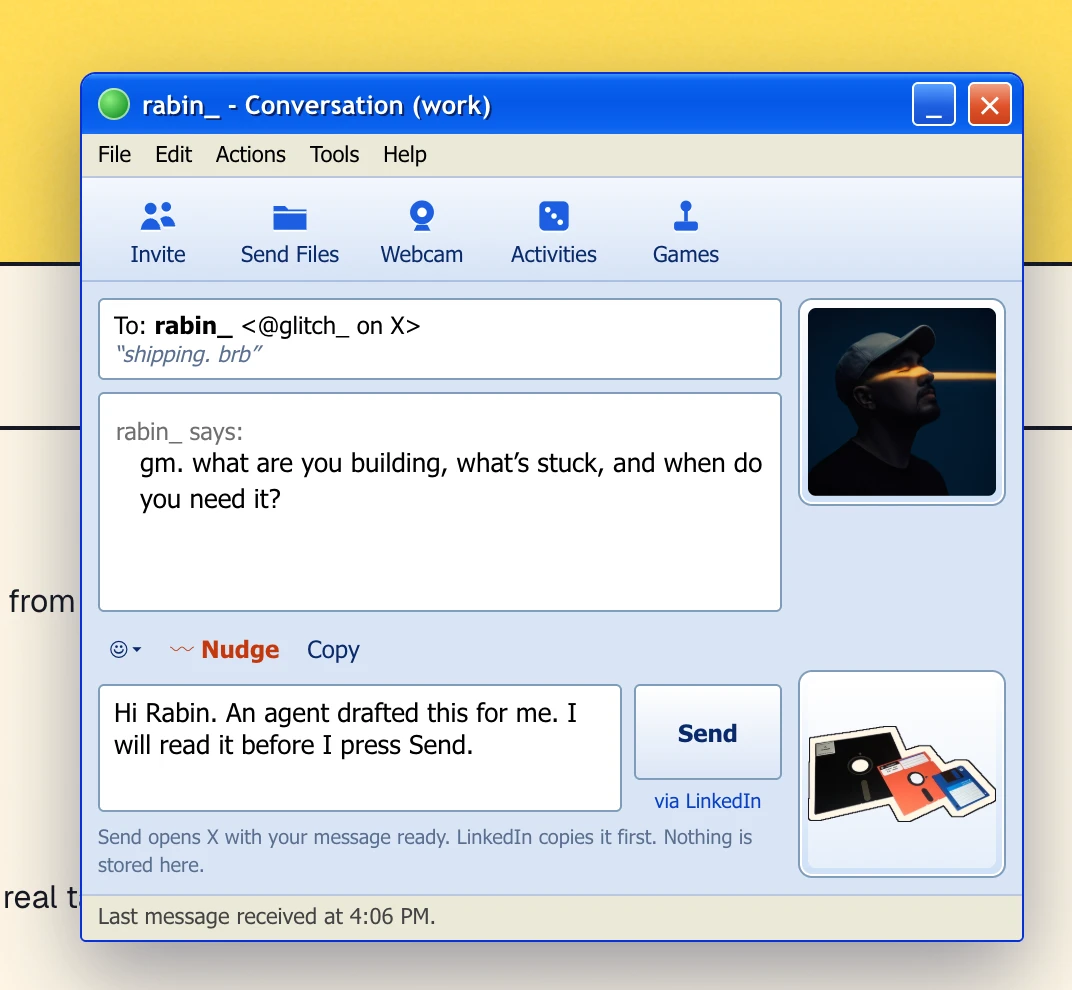
Name such a tool for what it really does: start_message, never send_message. If the visitor has already typed something, leave it alone.
Step 7: Serve the same tools over MCP
Put the same function behind an MCP server and agents that never open a browser can use it too. Assistants and coding tools connect over the network, with no tab involved.
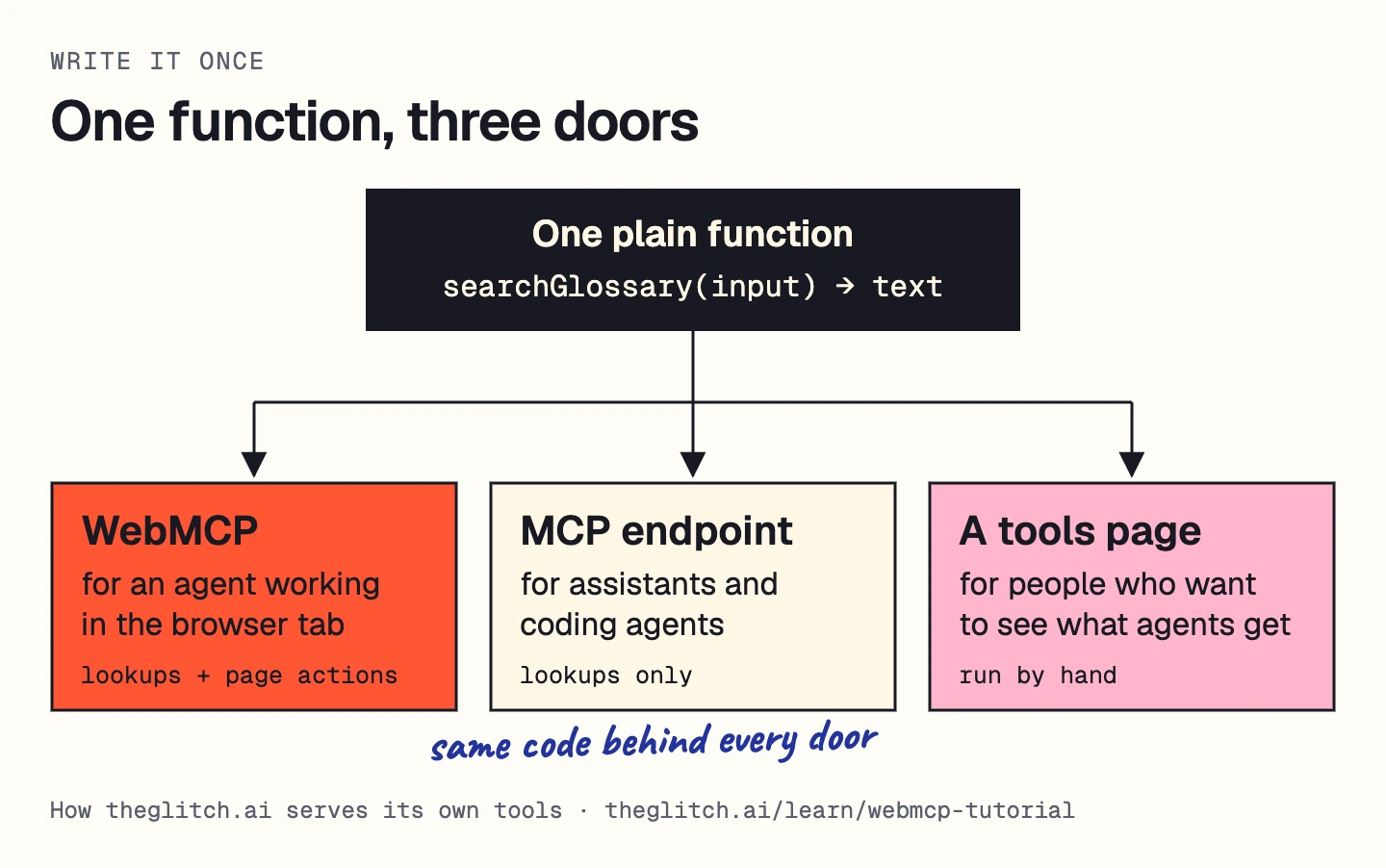
The current revision of the Model Context Protocol, dated 28 July 2026, removed the opening handshake and sessions. One request comes in and one answer goes out. That makes a small read-only server a modest piece of work: accept a POST, check that the headers match the body, run the function, return the text.
Offer lookups there and keep page actions out. There is no page to act on.
Step 8: Go live and count calls
Join Chrome's origin trial so the feature is on for your visitors, and count tool calls by name so you learn what agents ask for.
- Join the origin trial. Without it, only people who switch the flag on get your tools.
- Count calls by tool name. Do not record what was asked or answered.
- Tell agents the tools exist in whatever file you keep for them, such as llms.txt.
- Give people a way to see the tools. This site lists its own and lets anyone run them by hand.
Then watch what gets called, and write the next tool for the question people ask most.
What mistakes should you avoid?
The four most likely are the four this site made first. Its first version failed Chrome's guidance in these ways:
- It threw errors. The agent saw "failed" and nothing else. The fix is the
tryandcatchin step 3. - One answer ran to 2,284 characters. A search returned too much. Now each tool ranks its results, cuts to fit and links to the rest.
- A description carried a caveat. A description says what the tool is for. The caveat moved into the answer.
- A tool was called
work_with_rabin. That does not say what it does. It becameget_rabin_profile.
Fresh from This week in AI
| First try | What happened | The fix |
|---|---|---|
| Threw an error on bad input | The agent saw only that it failed | Return the reason as text |
| Returned every match | One answer ran to 2,284 characters | Rank, cut to fit, link to the rest |
| Put a caveat in a description | Longer text, no clearer choice | Say the caveat in the answer |
| Named a tool work_with_rabin | The name did not say what it does | A verb first: get_rabin_profile |
Questions people ask
How do I add WebMCP to my website?
Write each tool as a plain function that takes input and returns text. Then, where the browser has document.modelContext, call registerTool with a name, a description, an input schema and that function. Check that the API exists first, because most browsers do not have it, and the page must work the same without it.
How do I test WebMCP tools in Chrome?
In Chrome 149 or later, switch on chrome://flags/#enable-webmcp-testing and restart. Open your page and the DevTools console, call document.modelContext.getTools() to list what the page registered, then executeTool with one of them and some input. Try bad input too and read what comes back.
Why does my WebMCP tool only say it failed?
When a tool's function throws, the browser passes the agent the name of the error and nothing else. The draft does this on purpose, so a site's internals stay private. Catch the error inside the tool and return a sentence that says what to fix, so the agent can correct its input and try again.
How long can a WebMCP tool's answer be?
Chrome's guidance, which it says may change, is about 1,500 characters per answer. It also suggests up to 30 characters for tool and parameter names, 500 for a tool's description and 150 for a parameter's. Rank your results, cut them to fit and end with a link to the page that holds the rest.
Do I need an MCP server as well as WebMCP?
Only if you want agents that never open a browser to use your tools, such as assistants and coding tools that connect over the network. If your tools are plain functions, the same code can serve both. Offer lookups on the server and keep actions that change the page in the page.
Should a WebMCP tool be able to submit a form?
Be careful with it. A tool that fills in a form and leaves the last click to the visitor is easy to defend. A tool that submits on its own can buy, book or send without anyone looking. Name a tool for what it really does, start with ones that only prepare a draft, and mark anything irreversible as consequential.
Key terms
Tool calling · MCP server · Model Context Protocol · Browser agent · Human in the loop